

SciSpace is an AI-powered platform designed to facilitate the research process. It helps users quickly find, analyze, and summarize scientific information, providing convenient tools for working with literature, extracting data, managing citations, organizing notes, and receiving AI support in their writing. All the above makes research work more structured, coherent, and productive.
In the message below we explore some of the platform’s key opportunities. To fully benefit from the free version, we recommend registering before you begin.
SciSpace Tools:
- Chat with scientific PDF documents
The platform provides interaction with the text of your research materials: you can ask questions and receive accurate answers, as if you were discussing an article with a groupmate or a colleague. This facilitates working with scientific publications and helps you quickly find the information.
- Literature Review
SciSpace helps automatically extract key data from publications, making the analysis of scientific sources efficient and systematic. It is suitable for both assembling reviews and searching for specific information in arrays.
- Citation Generator
The service automatically generates references in accordance with APA, MLA, Chicago and other styles. This saves time, reduces the risk of errors and complies with the scholarly requirements.
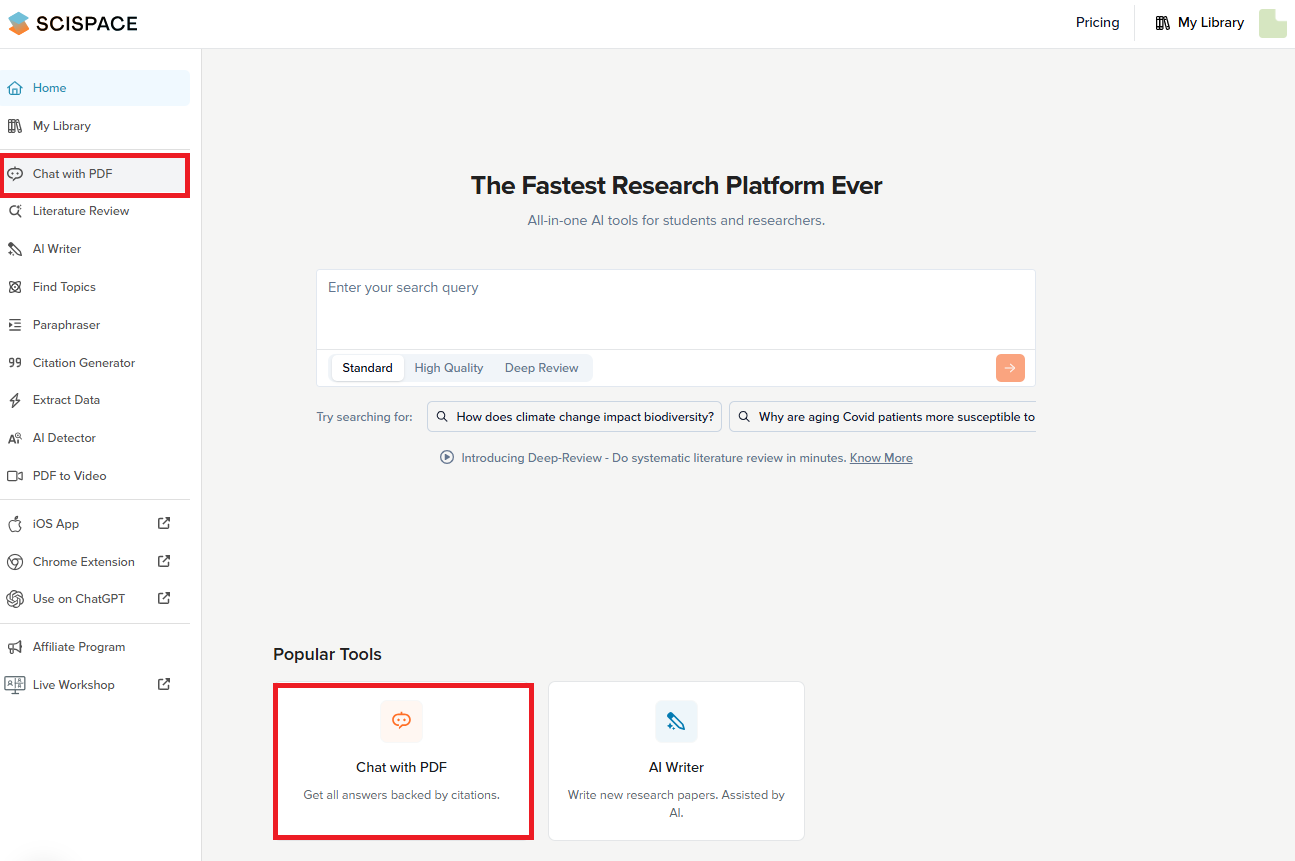
Chat with scientific PDF documents
1. Open “Chat with PDF”.
Click “Upload PDF” to select a research paper from your device or from the library.
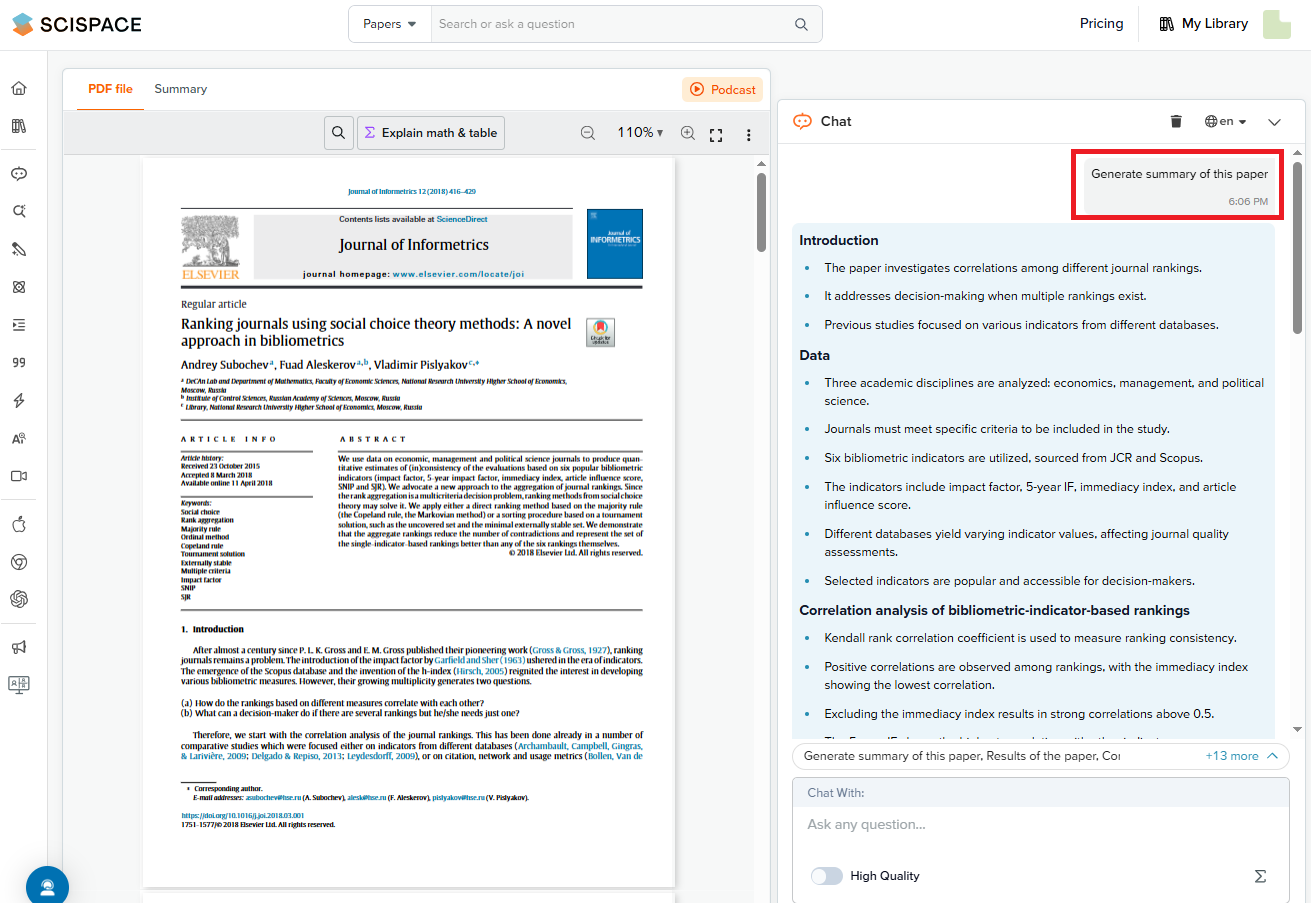
2. Ask questions using AI.
Chat interface will open. Enter your question in the input field. SciSpace's artificial intelligence extracts the necessary information from the document and generates a short answer.
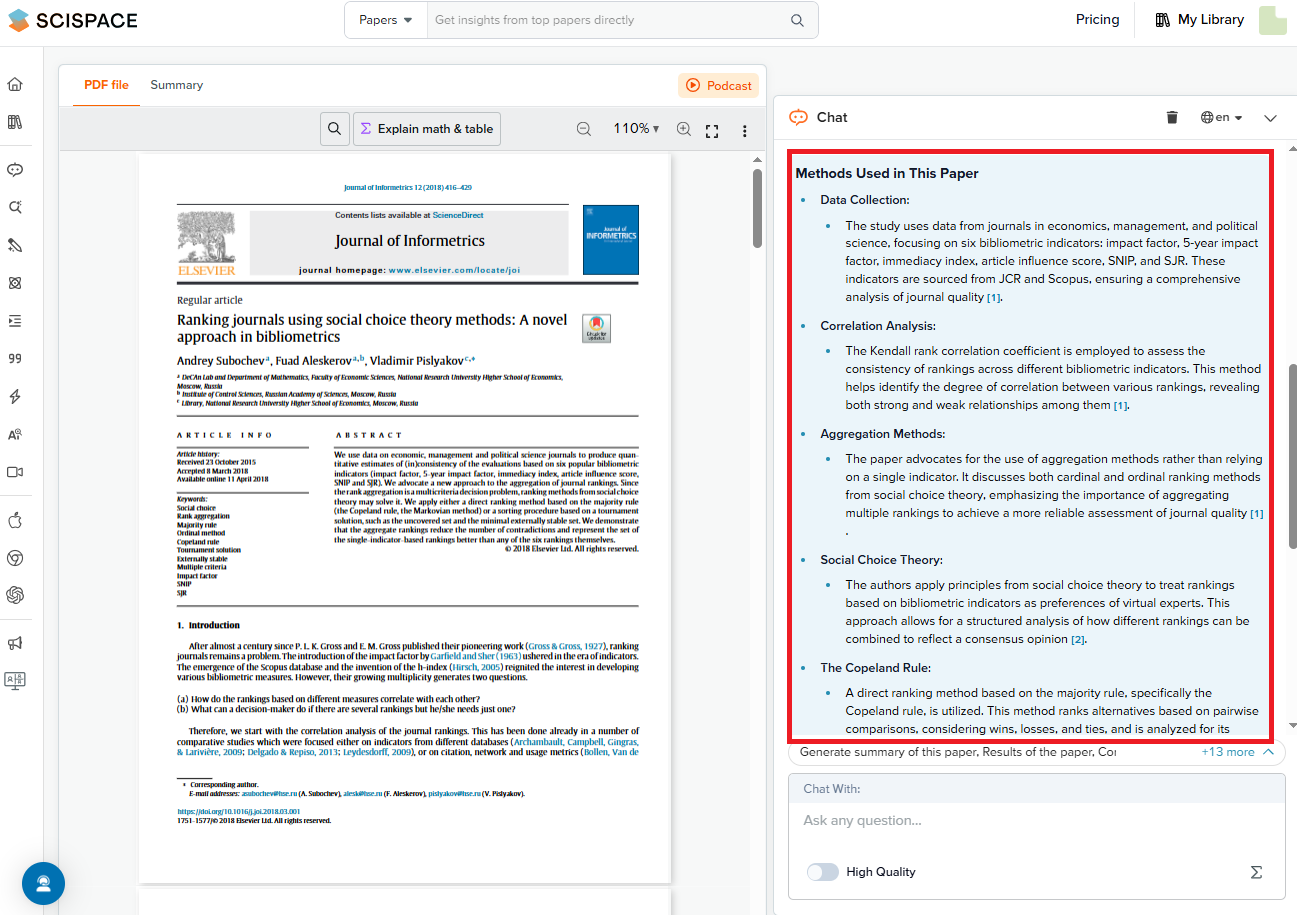
3. Highlight the key ideas of the article.
Use artificial intelligence to quickly obtain a summary of an article, including its abstract, methodology, results, and key conclusions. You can:
- Automatically extract the relevant sections of the paper;
- Save them for future reference in your research.
Additionally, you can ask the platform some specific questions:
- What is the study’s methodology?
- What are the limitations?
- How does this work relate to other research in the field?
This provides a deeper and a more efficient engagement with scientific literature.
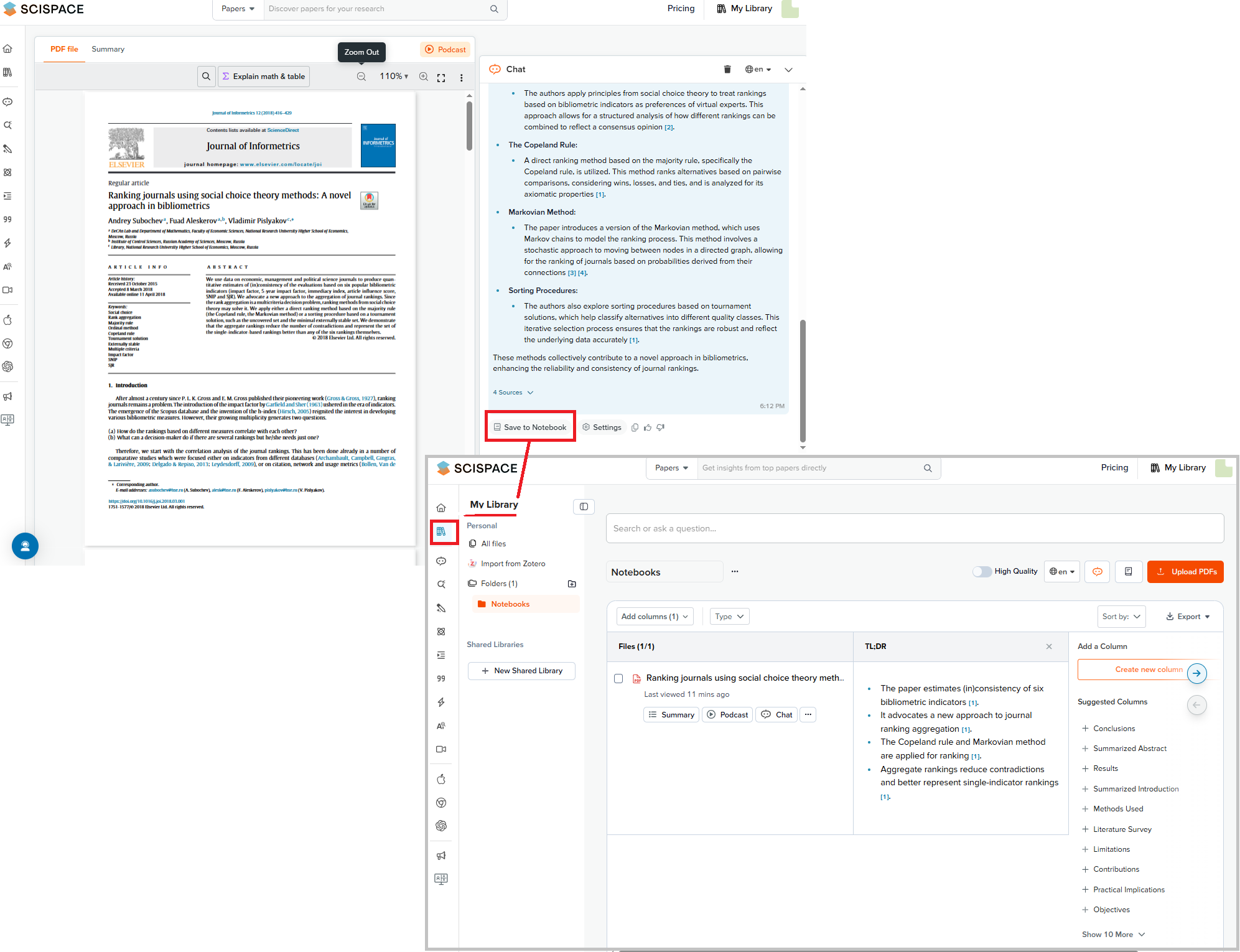
4. Save and organize your notes.
Click "Save to Notebook" to add the AI-generated information to your personal SciSpace library. Organize your notes into folders, creating a convenient structure tailored to your research topics. At any time, you can access your previously uploaded PDF files and chat history through the platform’s dashboard.
Recommendations for working with the chat for PDF files:
- The more precise your query, the more accurate and informative the AI’s response will be.
- Instead of long, multi-layered requests, ask short and focused questions.
- Review previous chats about the same document to stay up-to-date in the material, and to avoid repetition.
Read this message to learn more about the tools to work effectively with PDFs.
Literature Review
1. Find the "Literature Review" section in the menu.
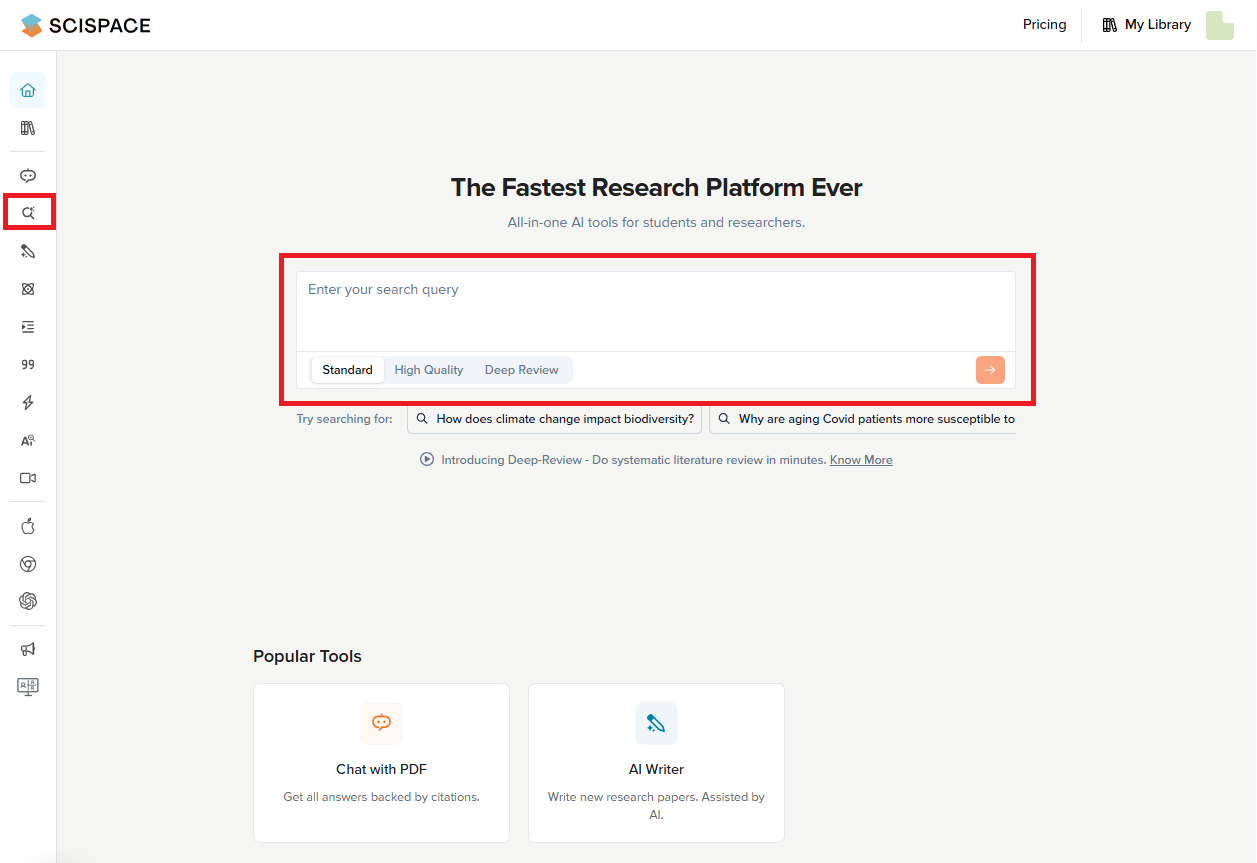
2. Detect the relevant research articles.
- Enter your research topic or keywords into the SciSpace search bar.
- The AI will retrieve the relevant articles from the platform’s database.
- Filter the results: year, journal, or open access availability.
- Add custom columns to extract key information.
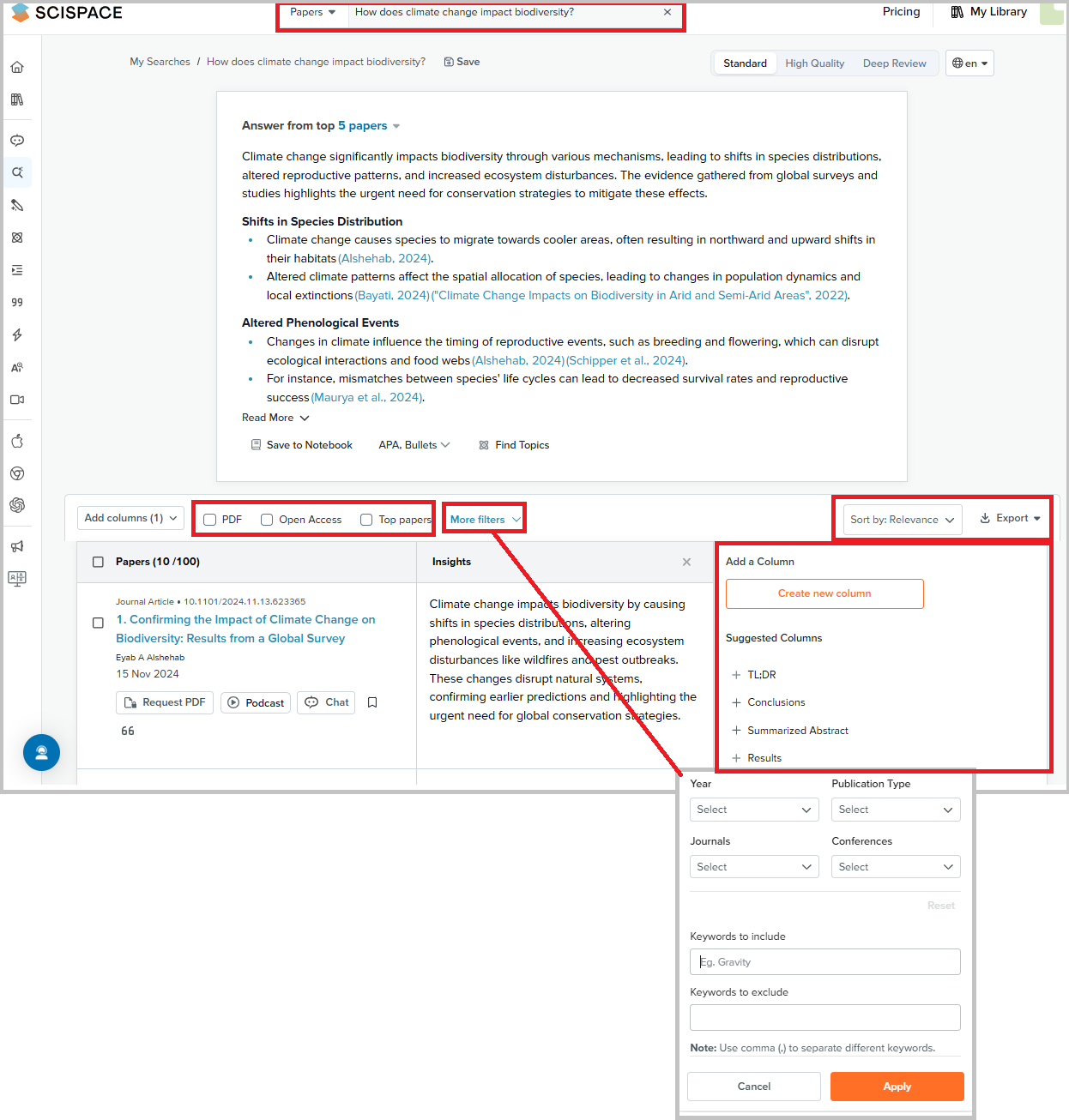
3. Analyze scientific articles using AI.
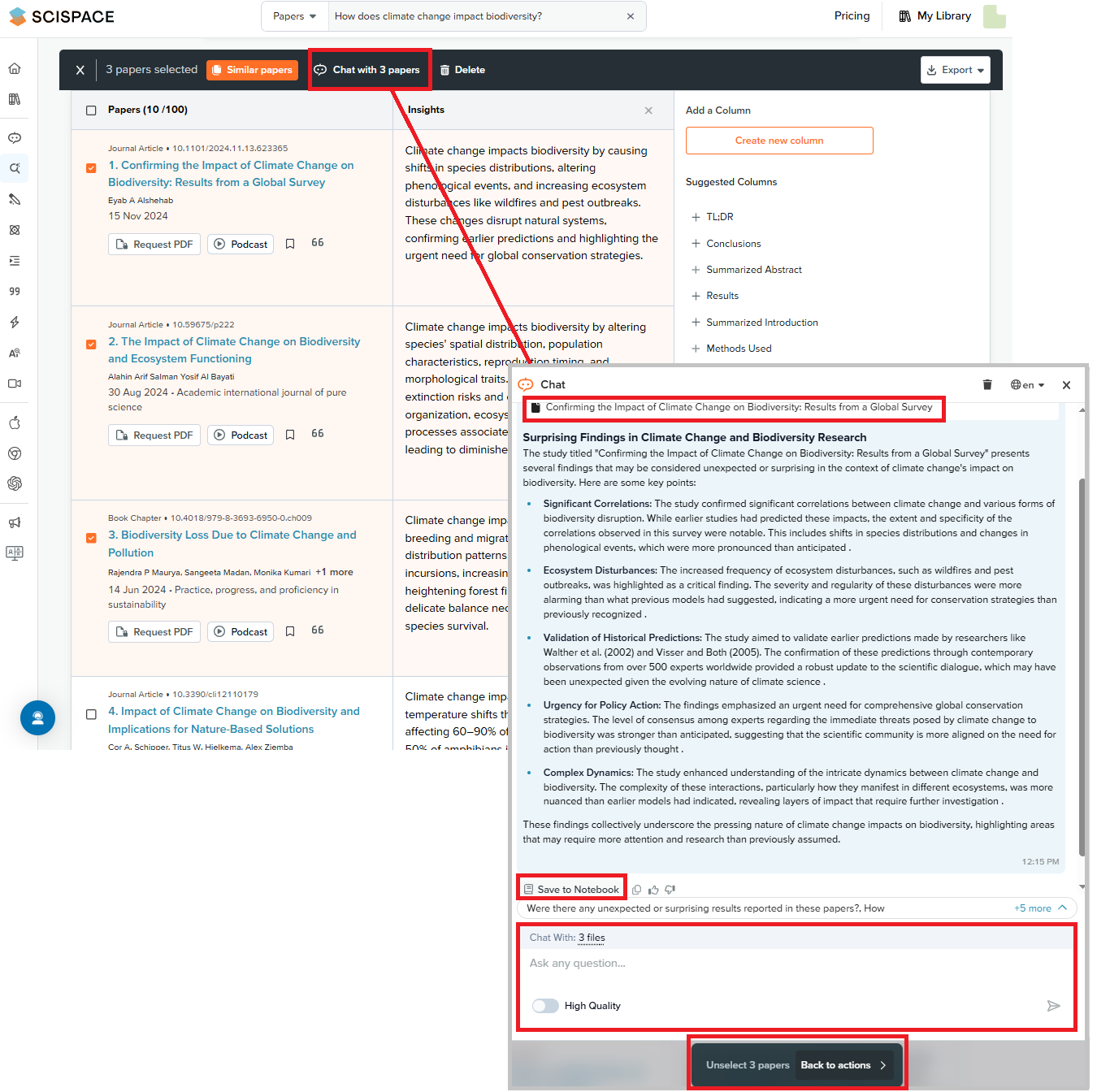
- Select an article and open it in the chat in PDF mode.
- Use AI-powered tools to:
- summarize the key information;
- identify methodologies, gaps and directions for further research;
- Highlight important paragraphs and save notes.
4. Arrange your Literature Review.
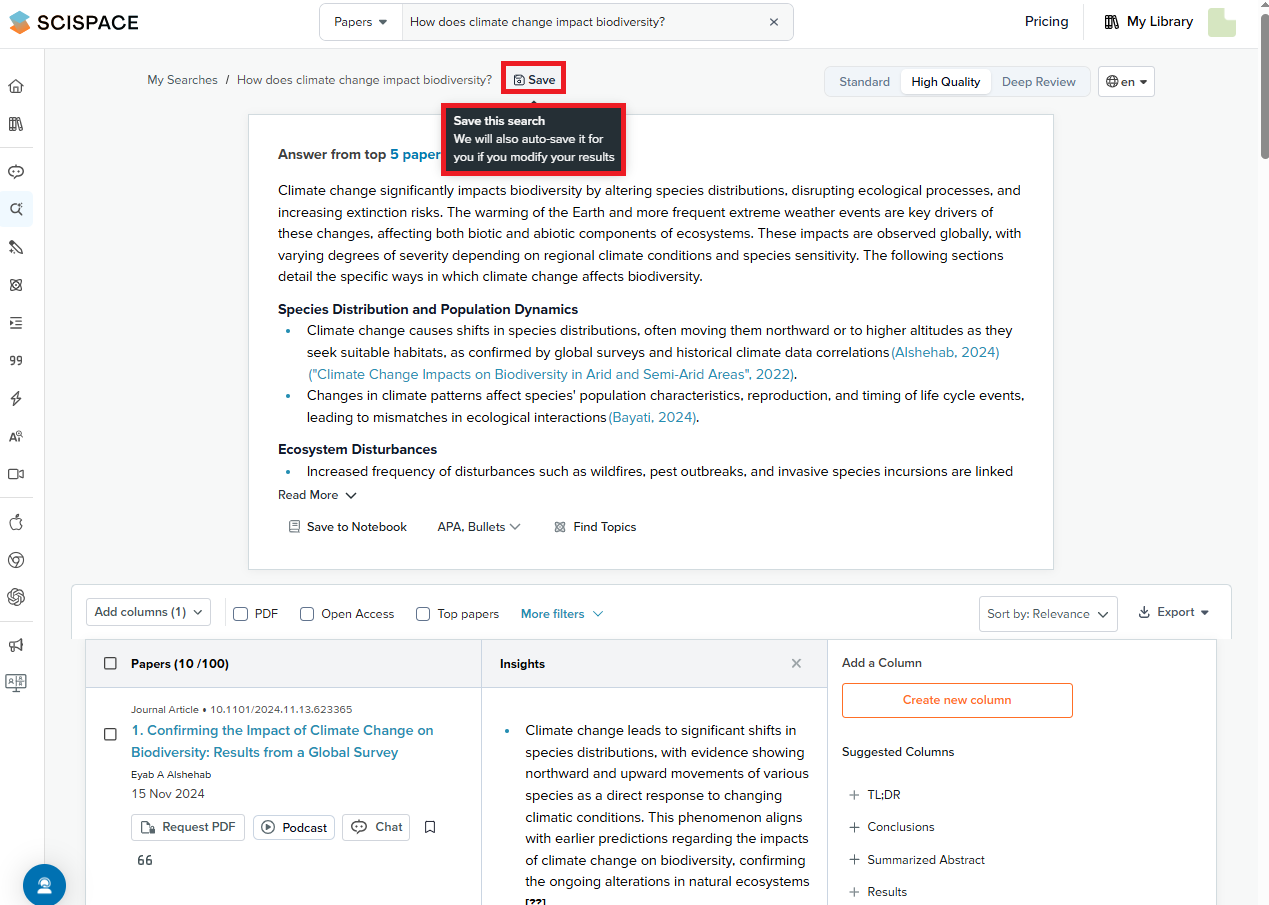
- Save the relevant articles in your personal Library on the SciSpace platform.
- Create folders by topic, methodologies, or identified research gaps for easier navigation through your materials.
Tips for an effective Literature Review:
- Use specific keywords and filters to find the most relevant studies.
- Compare the results to identify the current trends and discussion points in the research area.
- Regularly add articles to your SciSpace library to systematically keep track of sources.
- Summarize long texts, highlight key sections, and structure the information.
Citation Generator
1. Refer to the “Citation Generator” section.
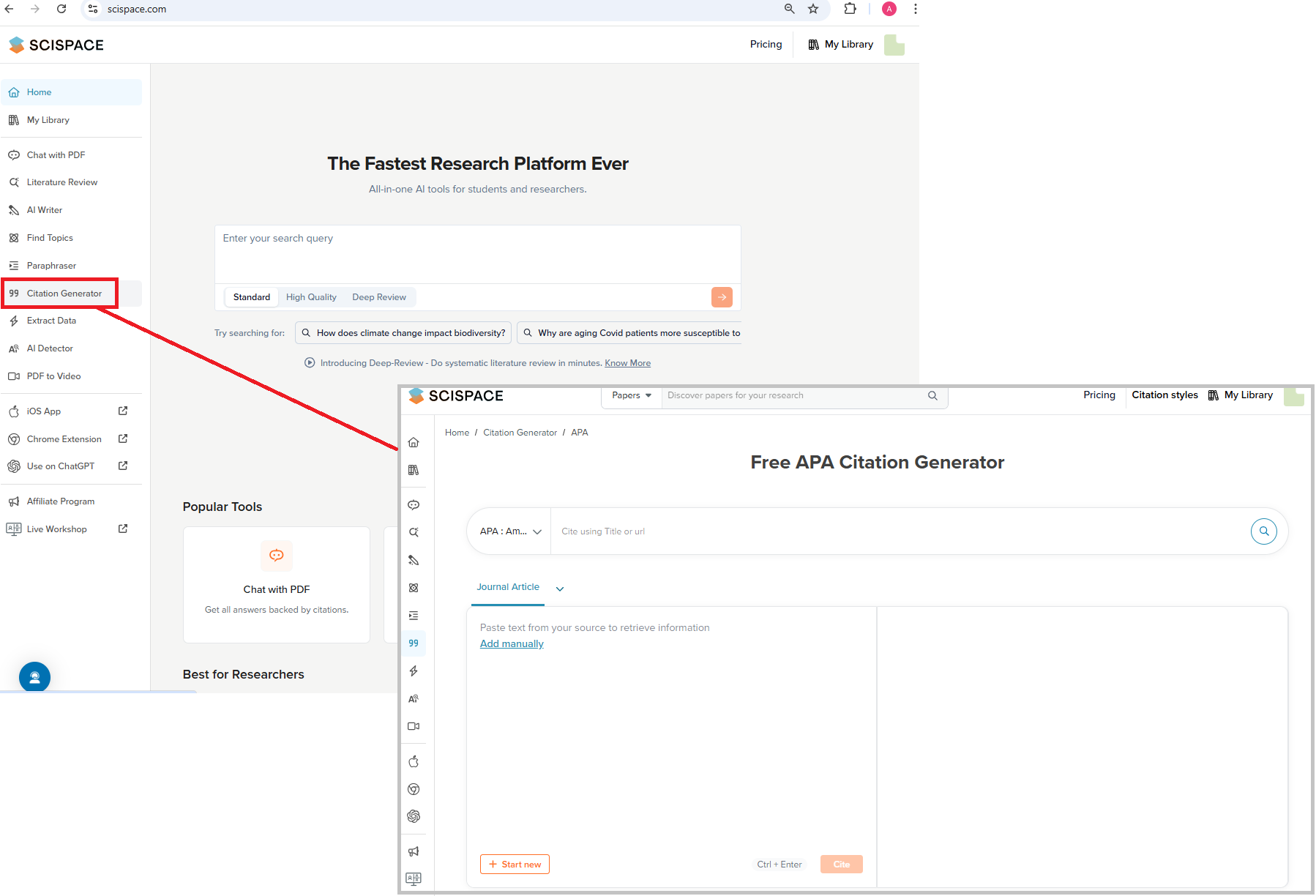
2. Select a citation method.
SciSpace provides two ways to create references:
- Select the article title, DOI or web address. The platform will automatically select the information for the citation.
- Enter data manually: specify the author, title of the work, name of the journal, and other information.
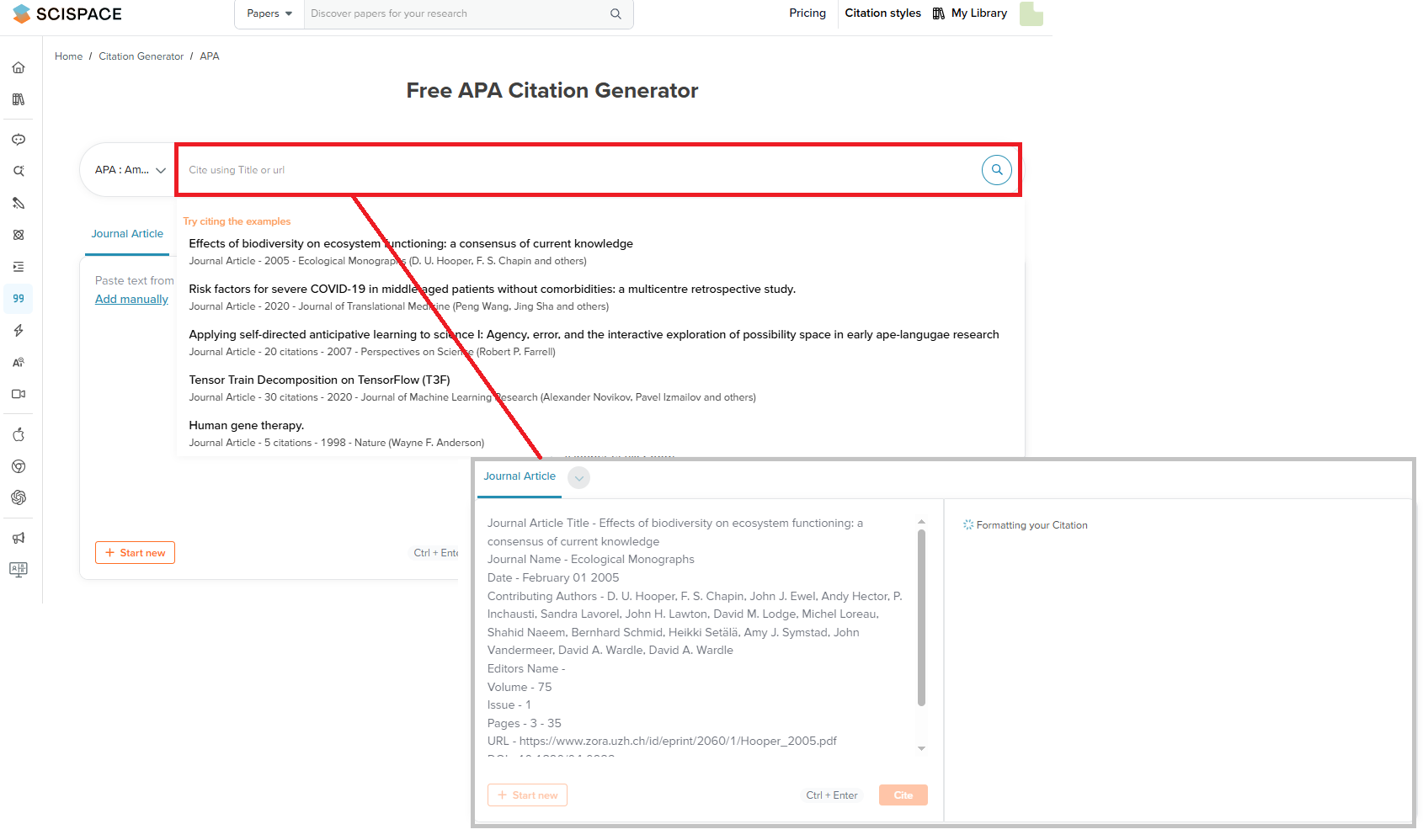
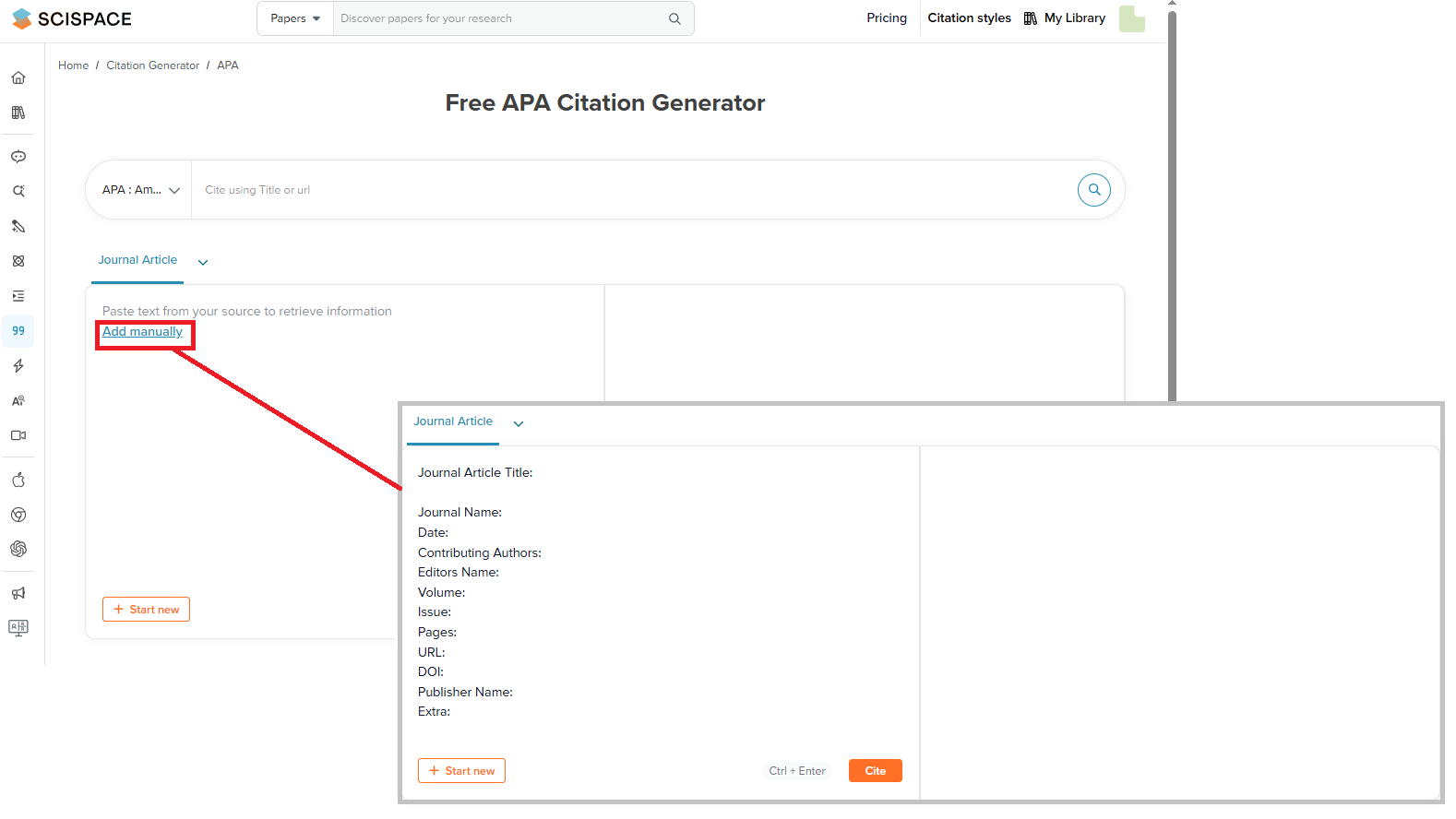
3. Choose the citation style
- Select APA, MLA, Chicago, IEEE, Harvard, or another style from the list.
- Check the preview to make sure your citation is formatted correctly.
- Click on "Create Citation"
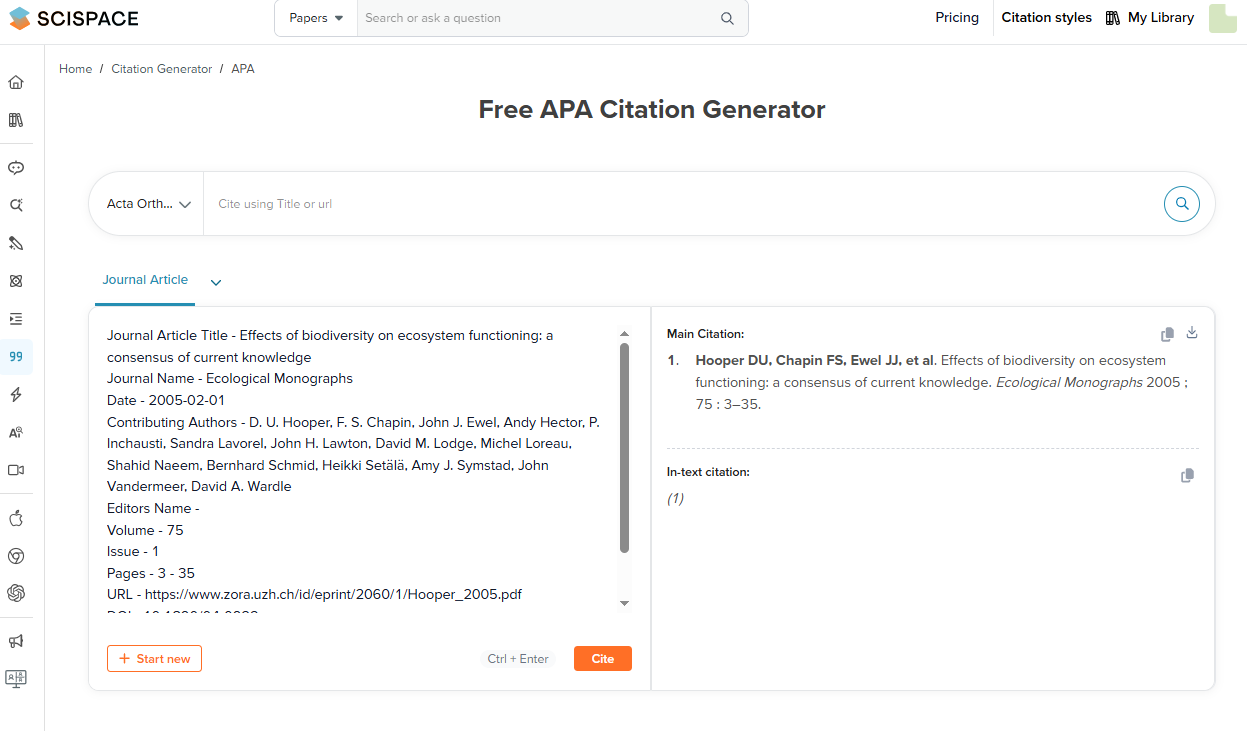
4. Save the citation
The citations created are automatically saved in your profile. You can edit, update or delete them at any time.
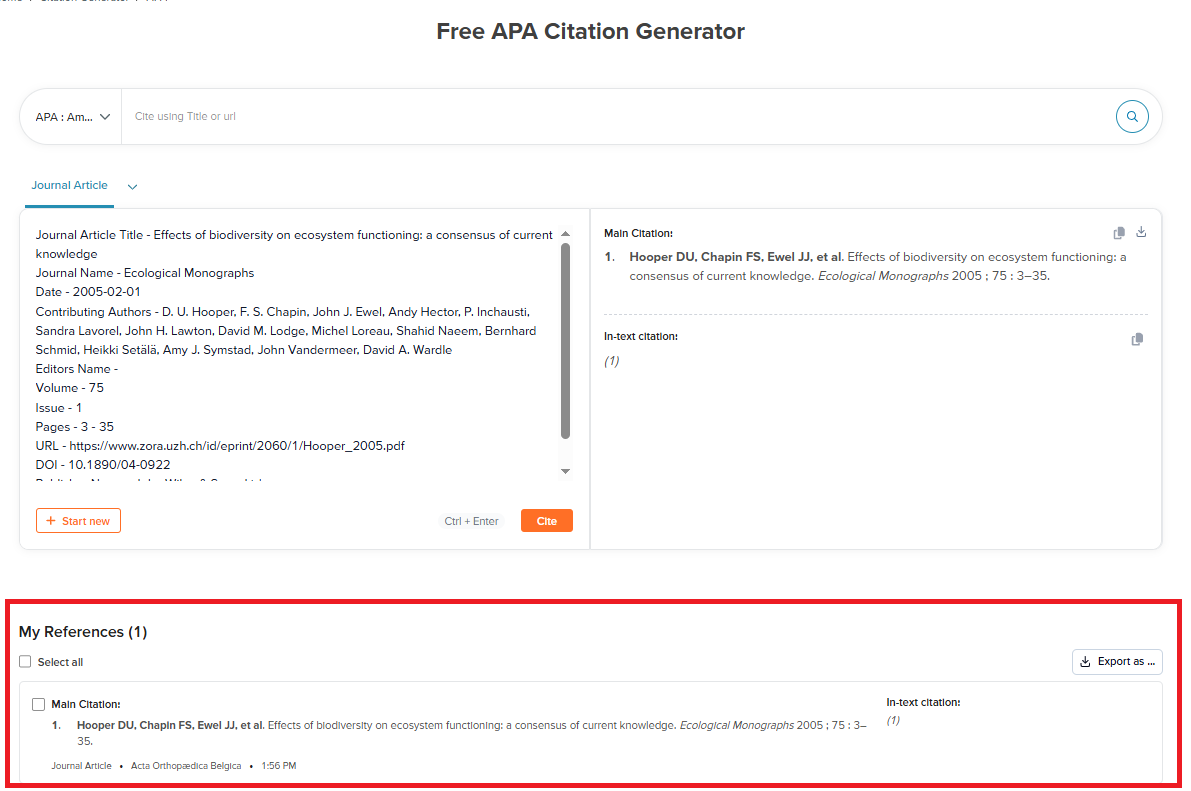
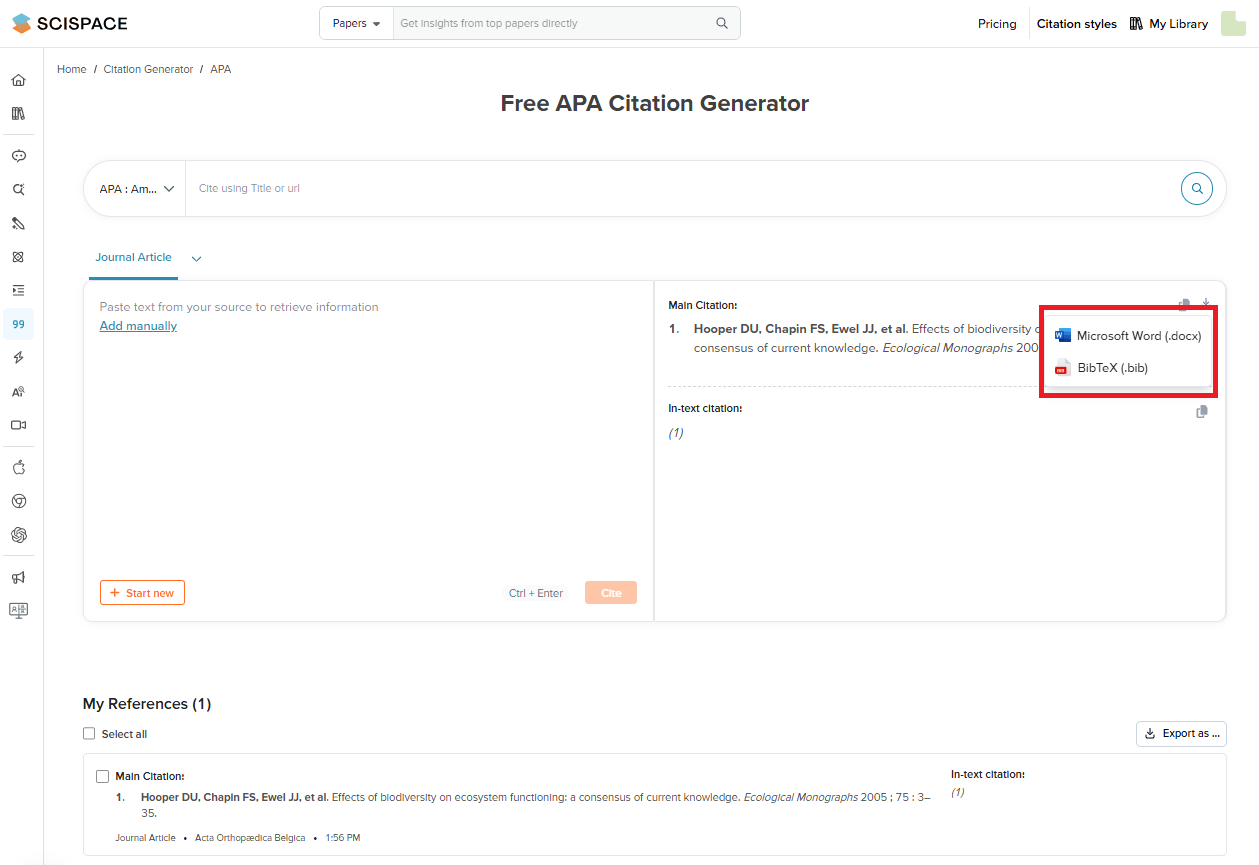
5. Export citations
- Click on "Export" to download citations in BibTeX or Word formats.
- You can copy them directly into your research paper and/or reference list.
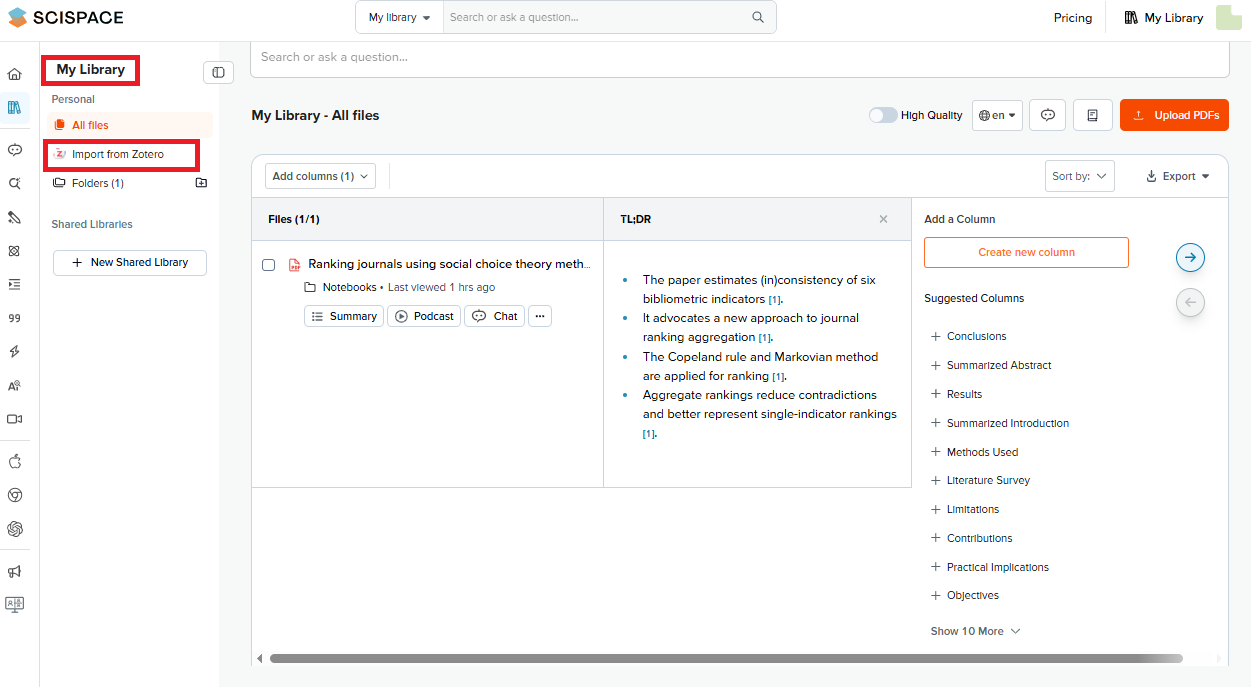
- Integrate Zotero, Mendeley or other reference management tools to facilitate working with the sources.
Tips for using the Citation Generator:
- Check the generated data for eventual errors.
- Make sure all citations are formatted in the same style meeting the requirements of your journal or institution.
- Group citations into categories or folders.
- Regularly update your data.
The website has detailed instructions and useful tips on how to make the most of all SciSpace features.